
Fusion 360 Blog

How to combine your part CAD and 3D runner geometry!

Wie Sie ihre Bauteil CAD und 3D-Kalt- oder Heißkanalgeometrie kombinieren können!

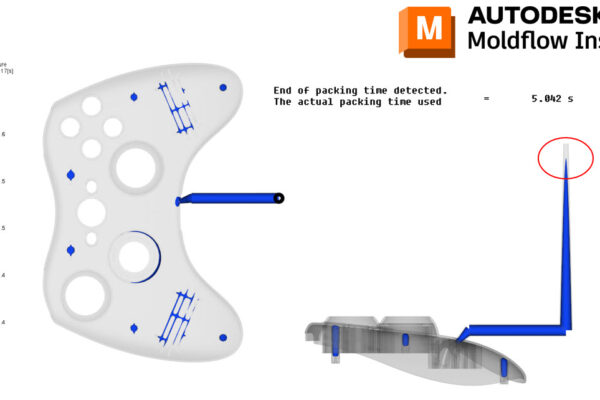
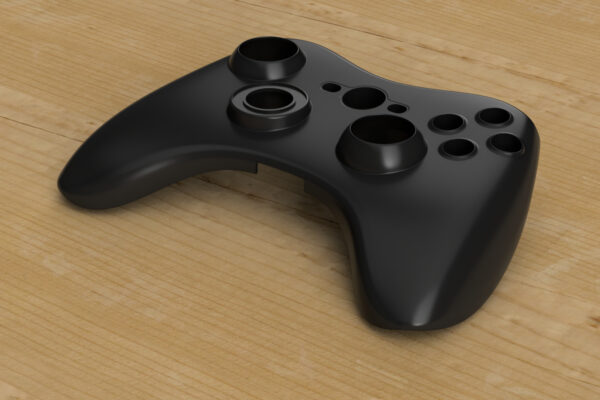
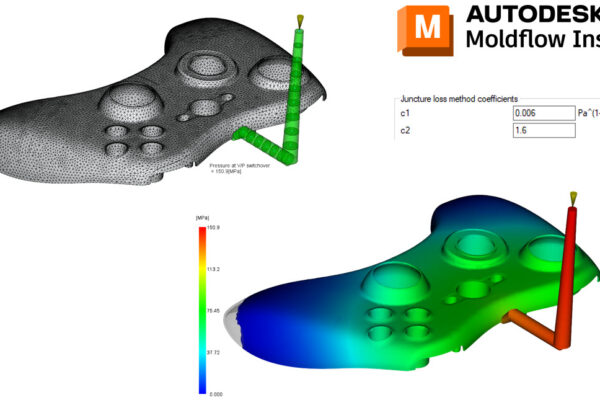
Ich möchte meine 3D-Kalt- oder Heißkanalgeometrie gerne mit meinem Bauteilmodell verbinden, bevor ich mit der Simulation loslege. Oft verwende ich das Werkzeug “Ändern – Kombinieren”, um mein Anbindungssystem mit meiner 3D-Bauteil-Zeichnung zu vereinen.

Manchmal funktioniert dies jedoch nicht richtig, insbesondere wenn das Anbindungssystem nicht korrekt mit dem Teil interagiert. Wenn das passiert, verwende ich den Befehl “Ändern – Pressen-Ziehen”, um das Ende des Einspritzsystems in das Bauteil-CAD zu erweitern. Dadurch wird sichergestellt, dass das “Ändern-Kombinieren”-Werkzeug wie erwartet funktioniert. Die Bauteile werden so zusammengeschweißt und sollten in Moldflow keine Probleme mehr bereiten.

Wie verbinden Sie Ihre Bauteil-CAD-Datei und die 3D-Anbindungsgeometrie?

For more news about Moldflow and Fusion 360, follow MFS and Mason Myers on LinkedIn.

Previous Post
Learn about our favorite Tool Steel in Moldflow!
Next Post
Why the gas-assisted Injection Molding analysis in Moldflow Insight can be useful!

More interesting posts

Check out our training offerings ranging from interpretation
to software skills in Moldflow & Fusion 360

The MF ACADEMY logo showcases the letters MFA intertwined with an educational hat, symbolizing excellence in training and expertise. This logo represents MF SOFTWARE's commitment to providing comprehensive programs in injection molding, Moldflow, and Fusion 360. Unleash your potential with MF ACADEMY's top-notch educational offerings.

Get to know the Plastic Engineering Group
– our engineering company for injection molding and mechanical simulations

PEG-Logo-2019_weiss